
How to fix AI-written dialogue where every character sounds the same
Give each speaker a short voice note in ScribistIQ’s Story Bible, rewrite one conversation in Write Studio, and check it by hiding the speaker tags. Includes a copyable example.

In this guide
When every character in an AI-written chapter speaks in the same tidy, polite sentences, you can fix it in Write Studio. Give each speaker a short voice note in the Story Bible, select the conversation, choose Rewrite, and then check the result with one simple test: hide the speaker tags and see whether you can still tell who is talking. This walkthrough takes one six-line exchange from a flat draft to a saved revision, without changing what anyone says.
Before you start
- Open your book in Write Studio. In the app sidebar, choose Co-write, then choose Co-write on your book’s card. Use the chapter menu at the top of the editor to open the chapter with the conversation you want to fix. Generated, imported and blank books all open here.
- AI actions need a paid plan, available credits and room in your monthly allowance. A Fast action costs 500 credits and a Pro action 3,000. On a free account you can open the Studio and write, but not use the AI.
- Copy the original conversation somewhere safe before you start, so you can compare versions. To practise first, paste the example below into a chapter you use for practice.
Step 1: Hide the speaker tags and read the exchange
A speaker tag is the “she said” or “Theo said” that tells you who is talking. Cover or delete the tags in a copy of the conversation and read the lines alone. If you cannot tell who says which line from the words, the characters are sharing one voice. In an AI draft this can happen when nothing tells the model how each person talks.
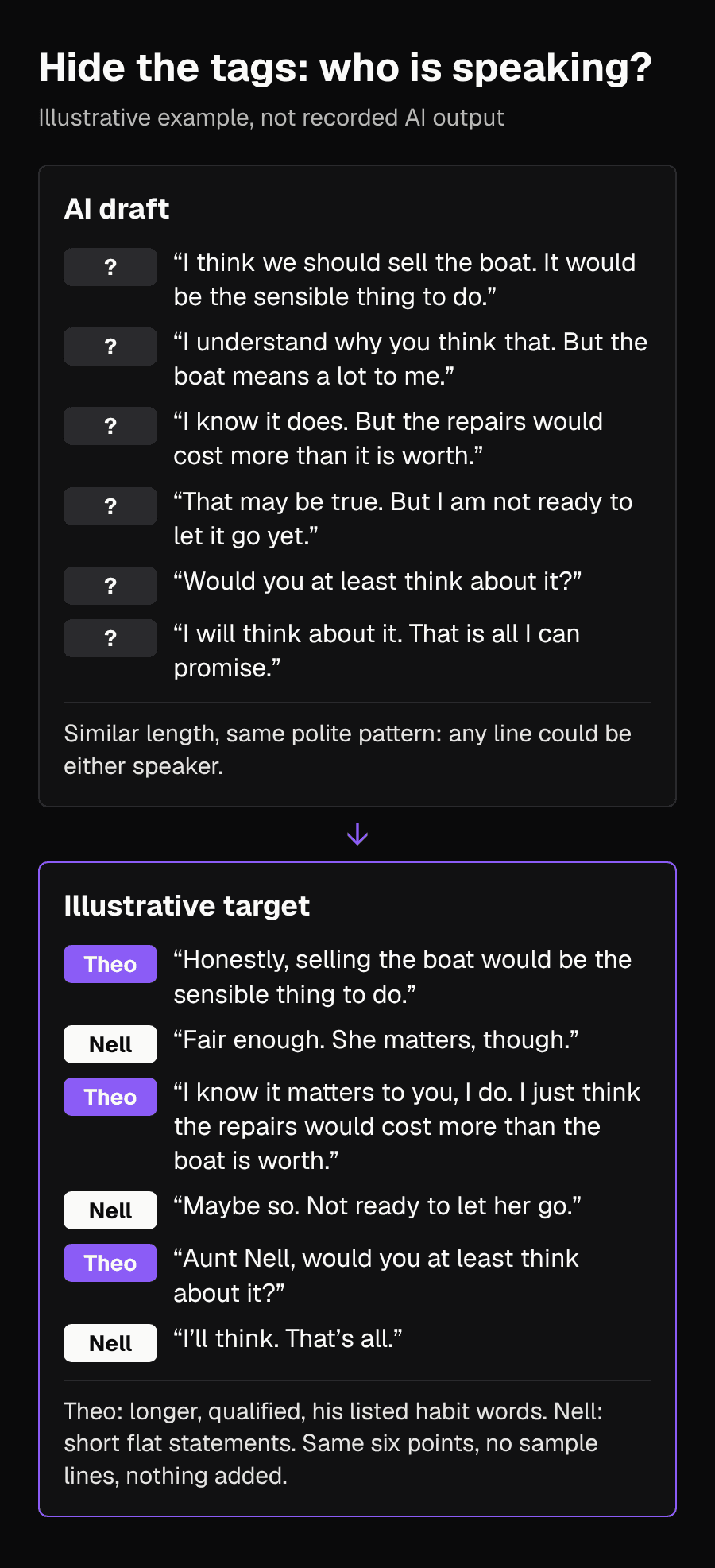
“I think we should sell the boat,” Theo said. “It would be the sensible thing to do.” “I understand why you think that,” Nell said. “But the boat means a lot to me.” “I know it does. But the repairs would cost more than it is worth.” “That may be true. But I am not ready to let it go yet.” “Would you at least think about it?” “I will think about it. That is all I can promise.”[5]
In this example, Nell is a retired ferry mechanic and Theo is her nephew. Remove the tags and every line could belong to either of them: similar length and the same polite structure. Four of the six lines open with “I”, and three turn on “But”. Before changing anything, write down what the conversation has to keep. These six points are your check later, because a revision that sounds better but drops or adds a point has changed the scene.[5]
| Line | Speaker | What the line must still say |
|---|---|---|
| 1 | Theo | Selling the boat would be the sensible choice. |
| 2 | Nell | She understands why he thinks so, but the boat matters to her. |
| 3 | Theo | He knows it matters, but the repairs would cost more than the boat is worth. |
| 4 | Nell | That may be so, but she is not ready to let go. |
| 5 | Theo | He asks her to at least think about it. |
| 6 | Nell | She agrees only to think about it. |
Step 2: Write a short voice note for each speaker
A voice note tells the AI how a person talks, not what they say in this scene. Keep it to a few concrete habits and two sample lines. Useful habits are the ones you can hear: how long their sentences run, the words they reach for, what they never say, and what they do when they are pushed. Write sample lines that are not from the scene you are fixing, so the AI learns the voice rather than pasting the lines in. Another tool’s documentation recommends a similar approach: give the AI examples of how a character speaks, because brief summaries tend to produce stereotypes.[4]
Nell, voice: Short, flat statements, usually under eight words. Uses boat and engine words. Rarely asks questions; answers a question with a fact or a task. Never explains her feelings out loud. Sample lines, not from the book: “Engine turns over. That’ll do for today.” “Pass me the spanner.”[5]
Theo, voice: Polite and careful. Long sentences padded with “honestly,” “I just think” and “in fairness.” Talks about money and sensible plans. Softens a demand by turning it into a question. Calls her “Aunt Nell” when he is pushing. Sample lines, not from the book: “Honestly, I just think a second opinion might be worth it, in fairness to everyone.” “Could we at least look at the numbers, Aunt Nell?”[5]
Make the two voices contrast on more than one habit. Sentence length is the easiest difference to hear, so it is a good place to start. Avoid giving a character a catchphrase to repeat in every line; one or two habits per line is enough to identify a speaker.
Step 3: Add the voice notes to the Story Bible
The Story Bible is the pane on the left of Write Studio. It holds narration and voice, characters, setting and continuity facts, and every AI action reads it, up to 16,000 characters in total. That is why the voice note belongs there rather than only in a one-off instruction: once it is in the Bible, later rewrites and continued scenes read it too.[1]
- In the Story Bible pane, find the entry for the first speaker. The Bible is filled in automatically the first time a book opens in the Studio, so read the entry and correct anything wrong.
- If a speaker has no entry, add one by hand. The automatic pass keeps at most 12 characters, so minor or later characters may be missing.
- Paste the voice note into that character’s entry, then do the same for the second speaker.
- Keep each note short. The 16,000-character limit is shared with all your characters, places and facts.
If you have not generated your book yet, you can do this up front instead. The Pro and Ultra Max generators accept your characters, places and rules before generation, and those are seeded into the story bible before chapter one is written. If you include each main character’s voice note there, it is in the story bible from the start, and you can still check and adjust it in the Studio afterwards.[2]
Step 4: Select the conversation and choose Rewrite
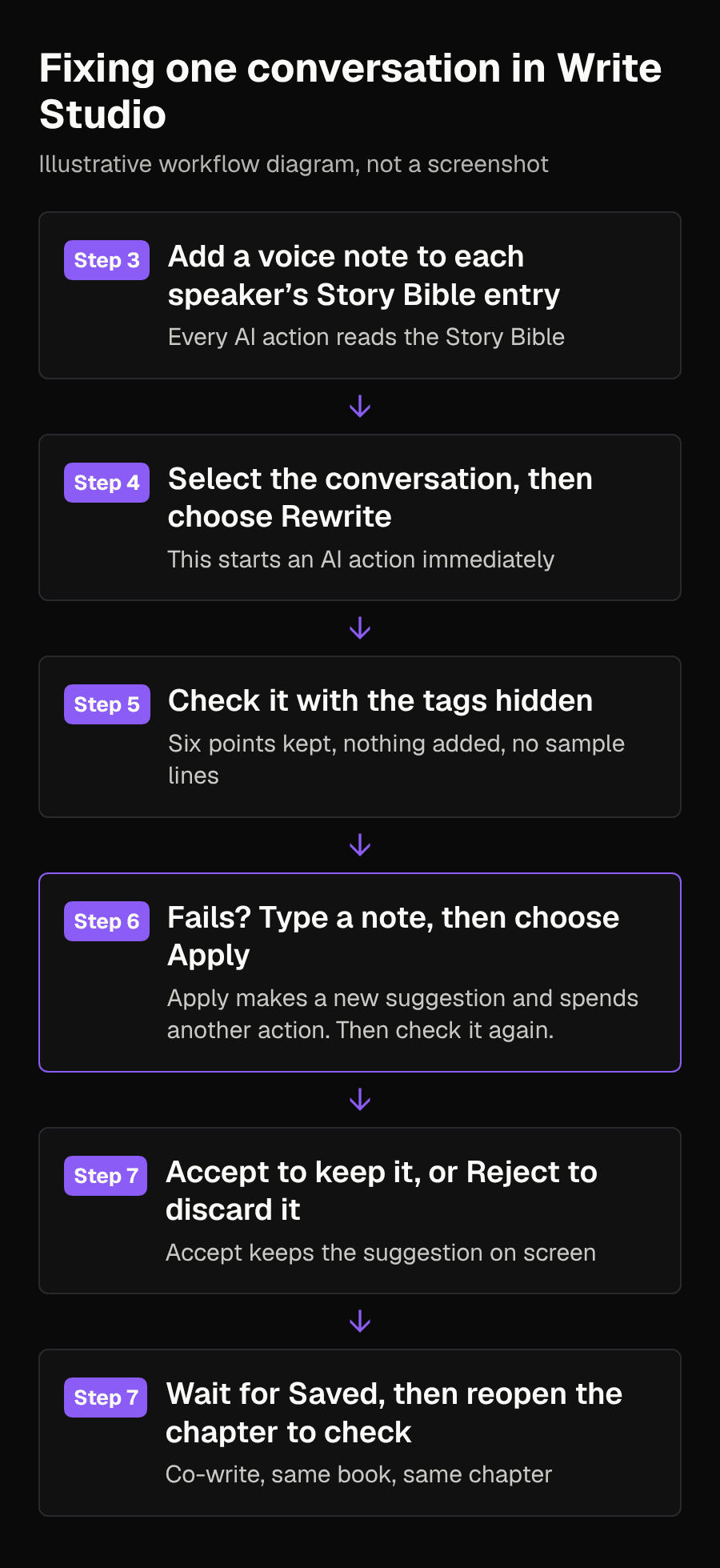
In the manuscript editor in the middle, highlight the conversation, including its tags and the short actions between lines, but not the paragraphs around it. A smaller selection keeps the AI focused on the voices. Then choose Rewrite. This starts an AI action immediately, so add the voice notes before you choose it. The suggestion streams in as tracked changes, with new words in green and removed words in red. Wait for it to finish, and do not choose Accept yet.[1]
Step 5: Check the suggestion with the tags hidden
When the suggestion has finished, read all of it, not just its first lines, and run these checks before you accept or steer anything:
- Tags hidden: copy the suggestion, hide the tags and label each line yourself. Could you name every speaker correctly?
- Six points: compare each line with the table in Step 1. Is every point still there, said by the same person, in the same order?
- Nothing new: did the AI add a fact or reason that was not in the scene, such as a specific repair, a price, other people affected, or a new appeal? Reject it or hand-edit the addition.
- No pasted samples: did it copy a sample line, or a phrase from one such as “a second opinion”, into the scene? The habit words a note lists are meant to appear; the sample lines are not.
- Not a caricature: does every line lean on the same habit? Real speech varies; one or two clear habits per line is enough.
“Honestly, selling the boat would be the sensible thing to do,” Theo said. “Fair enough,” Nell said. “She matters, though.” “I know it matters to you, I do. I just think the repairs would cost more than the boat is worth.” “Maybe so. Not ready to let her go.” “Aunt Nell, would you at least think about it?” “I’ll think. That’s all.”[5]
Your suggestion will use different words. The target shows what passing looks like. With the tags hidden, Theo’s lines are the longer, qualified ones that use his habits (“honestly”, “I just think”, “Aunt Nell” when he pushes), and Nell’s are flat statements under eight words. Each line keeps its point from the table: Theo calls selling sensible; Nell’s “Fair enough” acknowledges why he thinks so and “She matters, though” keeps the boat’s importance without explaining her feelings; Theo grants that and gives the repair cost; Nell says maybe but not yet; Theo asks her to at least think about it; Nell agrees to that and no more. Theo’s habit words come from the list in his note, but no sample line or phrase from one (such as “in fairness to everyone”) appears, and no new reason is added. In line 3, “the repairs” stays general; a version that named the hull, quoted a price, or added a reason such as “for me” or “for everyone” would add something the scene never had.[5]
Step 6: If it fails, steer it with a note and choose Apply
If the suggestion passes every check in Step 5, skip to Step 7. If the voices are still too close, or a line fails another check, type a note in the instruction box beneath the preview and choose Apply. Change the names to match your book.[1]
Rewrite only the spoken lines so Nell and Theo each sound like the voice notes in their Story Bible entries. Keep who speaks each line, the order of the lines, what each line says and all actions. Do not reuse the sample lines from the voice notes. Add no new facts, events or objects.[5]
Apply generates a new suggestion for the original selection using your note. It does not accept anything. Each successful generation spends another action: a Rewrite plus one Apply is two actions, 1,000 credits at Fast or 6,000 at Pro if both return text. Try again repeats the last applied note, so if you type a new note, choose Apply rather than Try again. When the new suggestion finishes, run the Step 5 checks on it again.[1]
Step 7: Keep or reject it, then check it saved
- Choose Accept only when the suggestion on screen passes every check. This puts it into the manuscript and closes the suggestion.
- Choose Reject to discard it. You can then fix a line or two by hand, or select the conversation again and choose Rewrite, which starts another action.
- Check the save status above the editor. Work saves a few seconds after you stop typing, and there is also a Save button. Wait for Saved; if a save fails, keep the editor open and keep a copy of the text.
- To confirm, choose Co-write in the sidebar, reopen the same book and select the same chapter. The revised conversation should be there, and the voice notes should still be in the Story Bible.
If it still goes wrong
| What happened | What to try |
|---|---|
| Both speakers still sound alike | Make the notes contrast more sharply, starting with sentence length, then select the conversation and choose Rewrite again. |
| A sample line from a voice note appears in the scene | Reject it, or replace the line by hand. Change that sample line in the Story Bible so it is less tempting to copy. |
| The AI added a fact, a price or a reason | Reject it, or delete the addition by hand. Keep the “Add no new facts” sentence in your note and run the Step 5 checks again. |
| Lines moved to the other speaker | Reject it. Select the whole conversation again, including every “Nell said” and “Theo said” tag, so the AI can see who speaks each line, and keep “Keep who speaks each line” in your note. |
| Every line uses the same tic | Accept the version that is closest, then cut the extra tics by hand. |
For the rest of the book
Because every AI action reads the Story Bible, Continue the scene and later rewrites read the voice notes too. Run the tag test on new conversations as you go, and update a character’s note if their voice should change over the story. If you are on a Pro plan, the Deep Manuscript Audit lists Dialogue among its twelve categories and quotes each passage it flags, at 40,000 credits per chapter. Use the same test on anything it raises.[1][2]
Limits
A voice note is guidance the AI reads, not a guarantee, so review every suggestion before you accept it. Voices only go so far: if two characters want the same thing in a scene, the conversation may need a different disagreement, not different wording. The tag test and voice notes are an editorial method we have not measured, and the before, the voice notes and the target above are invented examples rather than recorded AI output.
Sources
- ScribistIQ: How to write a novel with an AI co-writerChecked 2026-11-12
- ScribistIQ: FeaturesChecked 2026-11-12
- ScribistIQ: Finish the novel you started with AIChecked 2026-11-12
- Novelcrafter: Voice sheets for characters (Codex Recipes)Checked 2026-11-12
- Original worked example: giving Nell and Theo distinct voicesChecked 2026-11-12